

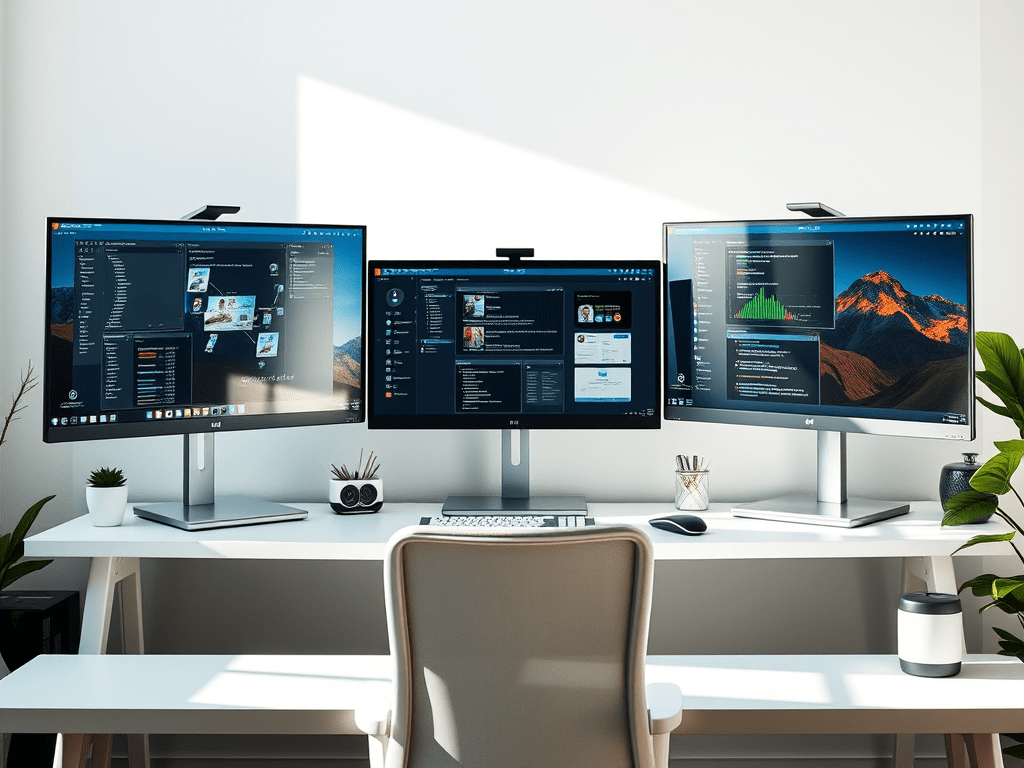
Whether you’re setting up a second monitor for the first time or managing a full three-screen command centre, the goal isn’t just more pixels- it’s more possibility. A thoughtful multi-monitor setup can reduce stress, improve focus, and support the kind of work that feels good on both the eyes and the brain.
This guide walks you through each step with clarity and care: from setting your intention to arranging your workspace, assigning roles to each screen, and designing a setup that supports your body and your workflow. Along the way, you’ll find space to reflect, adjust, and grow – not just in productivity, but in comfort and creativity.
Let’s build a digital workspace that reflects how you work best, calm, capable, and intentionally yours.
A practical guide to using two or three screens with purpose and ease
Define Your Purpose
Before arranging your monitors, clarify what you want to achieve. More screens don’t automatically mean more productivity.
☑ Reflect on:
- What tasks benefit from extra screen space?
- Which apps or windows do you use most frequently?
- Do you need simultaneous visibility or just quick switching?
✍ I use multiple monitors to support ____________________________
because it helps me ____________________________.
Choose a Layout That Works for You
Your physical setup affects comfort and workflow. Consider how your eyes and body move across screens.
☑ Try one of these configurations:
| Layout Style | Best For | Notes |
| Side-by-Side | General multitasking | Keep the primary monitor centred |
| Stacked | Limited desk space | Use adjustable arms for top screen |
| Angled Wraparound | Immersive work (design, gaming) | Reduces neck strain if balanced |
✍ My ideal layout is ____________________________
because it supports ____________________________.
Configure Your Display Settings
Make sure your system knows how to treat each monitor.
☑ In Windows:
- Right-click desktop → Display Settings
- Drag monitors to match physical layout
- Choose “Extend” to use each screen independently
- Set your primary monitor (where taskbar and main apps appear)
✍ I’ll set my main monitor to ____________________________
and extend displays to support ____________________________.
Assign Roles to Each Screen
Give each monitor a purpose to reduce decision fatigue and clutter.
☑ Consider:
- Primary screen: active work (writing, editing, coding)
- Secondary screen: reference material, chat, email
- Tertiary screen (if used): monitoring dashboards, media, notes
✍ I’ll use Monitor 1 for ____________________________,
Monitor 2 for ____________________________,
and Monitor 3 for ____________________________.
Prioritise Ergonomics and Eye Health
Screens should support, not strain your body.
☑ Check:
- Top of monitor at or just below eye level
- 20–30 inches from your eyes
- Slight inward angle for side monitors
- Use the 20-20-20 rule: every 20 minutes, look 20 feet away for 20 seconds
✍ To improve comfort, I’ll adjust ____________________________.
Keep It Clean and Intentional
More screens can mean more distractions. Be intentional about what stays visible.
☑ Ask yourself:
- Do I need all these windows open?
- Is my desktop cluttered or calming?
- Can I automate or group tasks to reduce switching?
✍ One way I’ll reduce visual noise is by ____________________________.
Final Reflection: Beyond Productivity
Multi-monitor setups aren’t just about doing more; they’re about doing better. What does a spacious, intentional digital environment make possible for you?
✍ With this setup, I hope to create space for ____________________________
and reduce ____________________________.
Pop over to Gwenin for a selection of frameworks, or pop over to Spiralmore’s collections. You’re also welcome to explore our more relaxed corner: the informal blog.

 Deconvolution